Write a program that design ATM machine for MBA BANK |
|---|
The program should load like this...
1) Welcome screen with the word "Welcome to MBA Bank"
2) When you click enter key the system should allow user to enter account open details
like(Full name, sex, account number, Amount and Pin/password)
3) After entering all above 2 details system should desplay message "Congratulation for working with MBA Bank"
4) The program should have the choice of Transaction 0-quit 1-view balance, 2-deposit, 3-withdraw
5) When user enter 0 as his choice system should close otherwise sytem should be able to withdraw, deposit or view balance
6)For user to view balance or withdraw must enter his pin to validate his/her account before he view balance or with draw
Program ATM;
uses wincrt;
var pin,m,x,y:integer;
an,fname,sex:string;
withdraw,amount,namount,draw:real;
keey,chose:char;
begin
writeln('Welcome to MBA Bank');
readln;
writeln('Enter your fullname');
readln(fname);
writeln('Enter your sex');
readln(sex);
|
ATM machine program (Sample Turbo pascal program question)
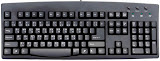
Useful Keyboard Shortcuts for Windows Computers (Keyboard key you should know)
Did you know that you can use WINRAR to protect your files with password (a mean to protect your files with password)
WinRAR is a helpful tool allows you to create and handle archive files. It completely supports rar and zip. What's more, it is also able to unpack CAB, ARJ, LZH, TAR, GZ, ACE, UUE, BZ2, JAR, ISO, 7Z, Z archives. It consistently makes smaller archives than the competition, saving disk space and transmission costs.
In our daily work, create password protected RAR archives to against WinRAR files from others viewing is in great request. Usually, there are two proven techniques to create password protected RAR archives.
Option one: You can open the password-protected RAR archive and view the individual files name, but you need knowing the password to extract the all files.
Option two: You can't open the password-protected RAR archive and can’t even view the individual files name without the password.
Below we will show you how to create these two types of password-protected rar archives.
If you haven't installed it yet download it from http://www.rarlab.com/download.htm
(choose the right version for your device)
If you haven't installed it yet download it from http://www.rarlab.com/download.htm
(choose the right version for your device)
Step 1: Open Winrar and click on Wizard.

Step 2: On the Wizard Choose the operation window, select Create a new archive and then click Next.
Make a Personal Diary with Notepad (Trick)
Did you know that you can Make a Personal Diary using notepad.
You can use this trick to create a personal log with Notepad which will automatically include the current date and time before your note. To do so, open Notepad and type .LOG in capital letters and press Enter. Save the file. Now, every time you open this file, notepad will automatically insert the current time and date before the note. Just enter your note and don't forget to save the file each time after making an entry.
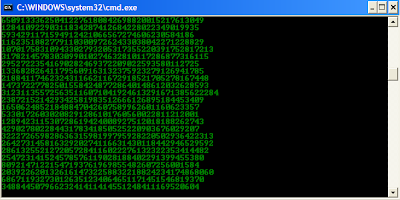
Trick to create Matrix Falling Code Effect on PC
Matrix Falling Code Effect - Notepad CMD (.BAT) Tricks | ||
|---|---|---|
Inspired by the movie Matrix, this falling code trick is extremelypopular on social networking websites.
Copy and paste the code given below inNotepad and save the file as "Matrix.bat" or *.bat.
@echo off
Upon running the bat file, you will see the "Matrix falling code" effect.
|
Shortcut key to Navigate from the current tab to the next or previous tab of your browser or other apps
CTRL + TAB was a common keystroke to move from tab to tab.
In many most/latest applications uses control key + tab key combination to navigate from navigate from the current tab to the next or previous tab. You can use these key combination in apps such as Internet explorer, Firefox, Adobe Photoshop CS5 etc.
You can press CTRL + TAB to navigate from current tab to next tab (left to right)
OR
You can press CTRL + SHIFT + TAB to navigate from current tab to previous tab (right to left)
You just need to know that most latest application introduces the use of tabs like most latest browsers, Nitro PDF, Adobe Photoshop and so many apps.

In many most/latest applications uses control key + tab key combination to navigate from navigate from the current tab to the next or previous tab. You can use these key combination in apps such as Internet explorer, Firefox, Adobe Photoshop CS5 etc.
You can press CTRL + TAB to navigate from current tab to next tab (left to right)
OR
You can press CTRL + SHIFT + TAB to navigate from current tab to previous tab (right to left)
You just need to know that most latest application introduces the use of tabs like most latest browsers, Nitro PDF, Adobe Photoshop and so many apps.
How to recover your important files/folders from usb/disk infected by shortcut virus using WinRAR (WinRAR trick)
Most people used to recover their files/folders by using command prompt (CMD) code
ATTRIB -H -R -S /S /D G:/
while G:/ is the drive letter of your Pen drive. If you USB has another drive letter then replace G:/ with that drive letter.
But also you can try recover your important files/folders the easiest way by using WinRAR
If you don't have WinRAR installed on your PC you can download it from http://www.rarlab.com/ choose the right version and download it, install it then follow the steps below.
First you files from usb/disk will look like this like this

On that folder/drive create WinRAR file by right click - new - WinRAR archive

Double click the WinRAR archive icon

Click on  OR double click on
OR double click on 
Then all your files/folders will appear as below, you can open them or drag and drop them to new location/folder

Using Aero Flip 3D (Ctrl+Windows logo key+Tab)
With Aero Flip 3D, you can quickly preview all of your open windows (for example, open files, folders, and documents) without clicking the taskbar. Flip 3D displays your open windows in a stack. At the top of the stack, you'll see one open window. To see other windows, you can flip through the stack.

- Press Ctrl+Windows logo key
+Tab.
- Press Tab to move through the windows. (You can also press Right Arrow or Down Arrow to move forward one window, or press Left Arrow or Up Arrow to move backward one window.)
- Click a window in the stack to display that window, or click outside the stack to close Flip 3D without switching windows. You can also rotate the wheel on your mouse to quickly move through the open windows.
You can also use

and holding down the Windows logo key. Press Tab until the window you want is at the front of the stack, and then release the Windows logo key.
How to View Stored Passwords in Firefox (Viewing someone account password on Firefox)
In Firefox you can view someone/friend/own Facebook, Twitter, Yahoo, Gmail Account or any website password, you can view it or delete it.
Firefox allows you to securely store usernames and passwords for websites in its Password Manager. When you visit one of the websites again, Firefox automatically fills in the username and password to log you in.
If you need to find out what your password is for a specific website such as Facebook, Yahoo, Twitter, Gmail etc. for which you saved your logon information, you can easily do so. To view your saved passwords in Firefox, select Options from the Firefox menu.
NOTE: You can open the Options dialog box by selecting Options on the main Firefox menu or on the submenu.

OR You can press alt key then on the tools menu click option

On the Options dialog box, click the Security button at the top. In the Passwords box, cl
Keyboard key to minimize all open windows and/or programs
Did you know that if you press
 |
| Windows_key + D |
you will minimize all open windows or/and program???
Incase you are situation that you need to minimize everything in your computer you can use the combination of those key...
How to Update windows xp sp2 to sp3 (from service pack 2 to Service pack 3)
Updating Windows XP Home Edition , Windows XP Professional Edition, Windows XP Service Pack 1 or Windows XP Service Pack 2 is easy just use automatic updates or you can visit Windows Update at http://update.microsoft.com.
But the best way is to download the installation package from http://www.microsoft.com/en-us/download/details.aspx?id=24
This installation package is intended for IT professionals and developers downloading and installing on multiple computers on a network but it doesn't matter if you install on single pc or more..
Command Prompt on Right-Click
Many computer users, specially the programmers, need to launch a command prompt window every once in a while to execute some dos/shell commands. The problem is, when a command prompt window launched, the default path is normally the system path or the user profile's path. The users will then have to do all the "cd" commands to change the directories to the path he/she wants.
This trick shows you how to add an option called "Command Prompt" when you right-click on a folder in Windows. With this option, a Command Prompt Window will launch and its current directory will be the path to the folder you've selected.
Use this trick at your own risk.
Here's what you'll get:


The Solution
You can either edit your registry OR download the registry file and apply it on your computer.
Method I. Manually edit the registry:
- Start > Run
- Enter "regedit" and hit Enter
- Expand to "HKEY_LOCAL_MACHINE\SOFTWARE\Classes\Folder\shell"
- Right-click on "shell" and select New > Key
- Make sure a new key is created under "shell". Change the name of this key to "Command Prompt"
- Right-click on this new key "Command Prompt" and select New > Key
- Change the name of this key to "command"
- Here's what we should have:
- Double-click on the "(Default)" text on the right window to bring up the edit box
- Enter this text into the Value Data field:
cmd.exe "%1" - Click OK and close the registry.

Hide Files or Folders Using Command Prompt
Trick to hide files and folders using Command Prompt
The most important thing is that, once hidden with this method, the files/folders cannot be viewed by any search options even if you click "Show All Hidden Files and Folders".
Hiding the most wanted files and folders is very important nowadays and it's really a tedious job too. In order to make this tedious job an easy one, I'm going to deliver you a the trick now.
For Example: You have a folder named "collegephotos" and this folder is stored in (Disk Drive E). You think that it should not be seen by strangers who use your PC.
For that you need to follow the following instructions
- Press windowkey+R: Run command dialog box appears.
- Now type "cmd" and hit enter. A command prompt window displays.
- Now type "attrib +s +h E:\collegephotos" and hit enter.
- The folder "collegephotos" will be hidden (Note: It cannot be viewed by any search options)
(To view this folder again, use the same command but replace '+' with '-' on both flags 's' and 'h')
Any Folder as a Photo Folder
This tricks shows you how to setup any folder to display its contents as a photo folder. In many cases, you save your images/photos in a folder different than "My Pictures" (under "My Documents"). Since this folder you choose is just like any other normal folders, its contents displayed as a listing of files. You can temporary change it by just right-click and select "View" >> "Thumbnails". But if you want to change the folder so that everytime you come back, the folder itself, as well as all its subfolders, display the contents as photo thumbnails.
Here's How
Right-click on the folder you choose and select "Properties"

Select "Customize" Tab. Then under "Use this folder type as a template", select "Pictures (best for many files)"

Check on "Also apply this template to all subfolders" to apply the setting to subfoders as well

Click OK to exit
Click OK to exit
How to Reset Your Forgotten Windows Password
Forgetting your password is never any fun, but luckily there’s a really easy way to reset the password. All you need is a copy of the Windows installation disk and one simple command line trick.
Use this at your own risk:

Follow the link below to reset Your Forgotten Windows Password the Easy Way
http://www.howtogeek.com/96630/how-to-reset-your-forgotten-windows-password-the-easy-way/
Subscribe to:
Posts
(
Atom
)


