Creating, resizing, deleting the partition in your HDD of Flash Drive without formatting your device | ||||
|---|---|---|---|---|
It has been known that when you want to create, resize, delete or merge partition, then these process must be done when installing an OS(Windows) and you must format and delete your HDD or HDD existing partition. but there are software that can be installed and used to create partition easily without formatting/deleting you HDD or HDD existing partition, These software (s) are easily to install, use and they are user friendly
In this post we are going to see how to resize a partition and create another (example If you have only drive C: then after this you will have drive C: and D:) and we will use software called EASEUS Partition Master link to download http://www.4shared.com/file/ZYF91bqhce/epm.html, you can also download the Latest version from http://www.easeus.com/partition-manager/epm-free.html.
Once you have downloaded it and installed it in your PC then follow the following steps (screen shots)
1st Step: Open you EASEUS Partition Master Software (If you haven't opened yet)
Then the below window will appear, and just click Go to main screen
2nd Step: This screen shot will appear after when you clicked Go to main screen from above shot, And you will see the drives from your computer, drive
|
Showing posts with label How to.... Show all posts
Showing posts with label How to.... Show all posts
How to resize, create partition without formatting the computer in windows


How to create a blog!! | Creating Blog is easy
Creating Blog is simple job, read this... | ||
|---|---|---|
Blogging has become one of the more popular pastimes on the internet. Some people blog for money, others blog about current events, and others blog for humor. The list goes on. Increasingly, bloggers are use weblogs as a personal journal, preferring to keep it out of the spotlight. If you're someone who wants to start a personal blog, it's really quite easy.
Select a blog host. A host is a website whose blogging platform you'll use in order to start blogging. With the rise of the internet, dozens of blogging hosts have risen to prominence, many of them easy to use for people who know next to nothing about computers. There are plenty of free hosts in addition to hosts for which you need to pay. Here are a list of just a few:
So in this case we will use Blogger, and all you need is your email address, but even if you don't have an email don't worry I will still show from beginning. Steps First Visit Blogger www.blogger.com then the below page will appear. then click create account.
(If your screen doesn't appear a below, don't worry just continue reading)
|

Change the size of virtual memory in Windows 7 | Why Should we increase the size of virtual memory?
How to increase the size of virtual memory in MS Windows |
|---|
If your computer lacks the random access memory (RAM) needed to run a program or operation, Windows uses virtual memory to compensate.
Virtual memory combines your computer’s RAM with temporary space on your hard disk. When RAM runs low, virtual memory moves data from RAM to a space called a paging file. Moving data to and from the paging file frees up RAM so your computer can complete its work.
The more RAM your computer has, the faster your programs will generally run. If a lack of RAM is slowing your computer, you might be tempted to increase virtual memory to compensate. However, your computer can read data from RAM much more quickly than from a hard disk, so adding RAM is a better solution.
If you receive warnings that your virtual memory is low, you'll need to increase the minimum size of your paging file. Windows sets the initial minimum size of the paging file equal to the amount of random access memory (RAM) installed on your computer, and the maximum size equal to three times the amount of RAM installed on your computer. If you see warnings at these recommended levels, then increase the minimum and maximum sizes.
|
 , right-clicking
  If you're prompted for an administrator password or confirmation, type the password or provide confirmation.
Why should we perform disk cleanup? | How to perform disk cleanup...
If you want to reduce the number of unnecessary files on your hard disk to free up disk space and help your computer run faster, use Disk Cleanup. | ||
|---|---|---|
The Disk Cleanup tool helps you free up space on your hard disk by searching your disk for files that you can safely delete. You can choose to delete some or all of the files. Use Disk Cleanup to perform any of the following tasks to free up space on your hard disk:
You can start Disk Cleanup, by doing any of the following:
-or-
-or-
Illustration:

 
|

How to recover your forgotten password and/or username on Google Accounts
A Google Account gives you access to Google products like Gmail, Google+, YouTube, and more with a single username and password. A Google Account comes with a Gmail address and a Google+ Profile. Once you create a Google Account, you can use that same username and password to sign in to any Google product.
We also use Google Account for sign-in to Google Play Store and also Google Accounts Sync your Contacts and you can backup your contacts and data from your Smart Phone to Google Account, So that when you loose your phone, or just decided to change your phone, you can easily recover/get your contacts and/or other data.
Question: 1. what happen when you forgot email/username or password?
2. Will you create another Google Account? / Will you create another account to access Google Play Store?
Most people create new account every time when they loose/Change their Smart phone! But you don't need to create new account over and over since recovering you Google Accounts email/username and/or password is easy! Follow the below instructions!
Step1: Open your web browser (Applicable in both Phones and computers) then open Google Account sign-in page https://accounts.google.com/ or you can just use Gmail https://www.gmail.com
then if this page appear click sign in
Once this page loaded click on Need Help?


We also use Google Account for sign-in to Google Play Store and also Google Accounts Sync your Contacts and you can backup your contacts and data from your Smart Phone to Google Account, So that when you loose your phone, or just decided to change your phone, you can easily recover/get your contacts and/or other data.
Question: 1. what happen when you forgot email/username or password?
2. Will you create another Google Account? / Will you create another account to access Google Play Store?
Most people create new account every time when they loose/Change their Smart phone! But you don't need to create new account over and over since recovering you Google Accounts email/username and/or password is easy! Follow the below instructions!
Step1: Open your web browser (Applicable in both Phones and computers) then open Google Account sign-in page https://accounts.google.com/ or you can just use Gmail https://www.gmail.com
then if this page appear click sign in
 |
| If this page appear just click sign in on the upper right side |
Once this page loaded click on Need Help?

Step2: Then if you are 100% sure you only forget password click "I don't know my password" radio button, if you forget both password and email just click "I don't know my username" radio button then click Continue

How to download (movies, tv series, software, games etc) from TORRENT | How to download from/using Torrent
As an IT student / IT guy, I 've been asked this question a lot "How do I download A movie or TV series or a Software from torrent ?" or simply "How do I download from torrent?" and I received these kind of questions from different people (fellow IT guys, fellow IT students, friends, clients etc.), and most of them think its very difficult or complicated.
So today I am personally dedicating this post to every one, and I am assuring that every can download anything from torrent and not only just Computer guys, follow the instructions given below:-
Step1: First make sure you have torrent software(UTorrent or Bit Torrent) installed in your device, if you don't have it installed visit http://www.utorrent.com or http://www.utorrent.com/downloads/win for Windows PC, then download it's free or you can buy it.
Step2: Visit https://www.thepiratebay.se/ or http://www.extratorrent.cc/ or any website that provide downloading with torrent option, In this case I will use https://thepiratebay.vg/
Step3: Type the name of the file you want to download and choose it category, in this the example photo above I typed name of the "FAST AND FURIOUS 7" movie but I didn't specify category I left it to its default which is "ALL" then click "Pirate Search" and the below page will appear
So today I am personally dedicating this post to every one, and I am assuring that every can download anything from torrent and not only just Computer guys, follow the instructions given below:-
Step1: First make sure you have torrent software(UTorrent or Bit Torrent) installed in your device, if you don't have it installed visit http://www.utorrent.com or http://www.utorrent.com/downloads/win for Windows PC, then download it's free or you can buy it.
Step2: Visit https://www.thepiratebay.se/ or http://www.extratorrent.cc/ or any website that provide downloading with torrent option, In this case I will use https://thepiratebay.vg/
 |
| After you visit https://thepiratebay.vg/ the page will look like this |
Step3: Type the name of the file you want to download and choose it category, in this the example photo above I typed name of the "FAST AND FURIOUS 7" movie but I didn't specify category I left it to its default which is "ALL" then click "Pirate Search" and the below page will appear
 |
| Here is the result, after I have searched word "FAST AND FURIOUS 7" |
Creating Database with MySQL (Commands to create Sample database with five related tables)
Lets assume we want to create a database for the company named GROUP4, and is in
need of database that contains five tables, Which are Managers, Departments,
Suppliers, Customers/Clients and Products.
1. Demonstration of ERD:
ENTITY RELATIONSHIP DIAGRAM
 |
| The ERD of GROUP4 Database |
2. Demonstration of MySQL Commands/Statements:
(You can copy these commands and paste them in your MySQL console then execute; they will work fine. )
DROP DATABASE IF EXISTS GROUP4;
create database GROUP4;use GROUP4;
create table Manager
(
MANID CHAR(4),
FNAME VARCHAR(20) NOT NULL,
LNAME VARCHAR(20) NOT NULL,
Did you know that you can translate, get synonyms and antonyms easily using google or other sites
With Google Translate you can a translate word, words or paragraphs all you need is type the word "Google Translate" on Google search engine, other search engines or you can just type http://translate.google.com/ then the below page will appear
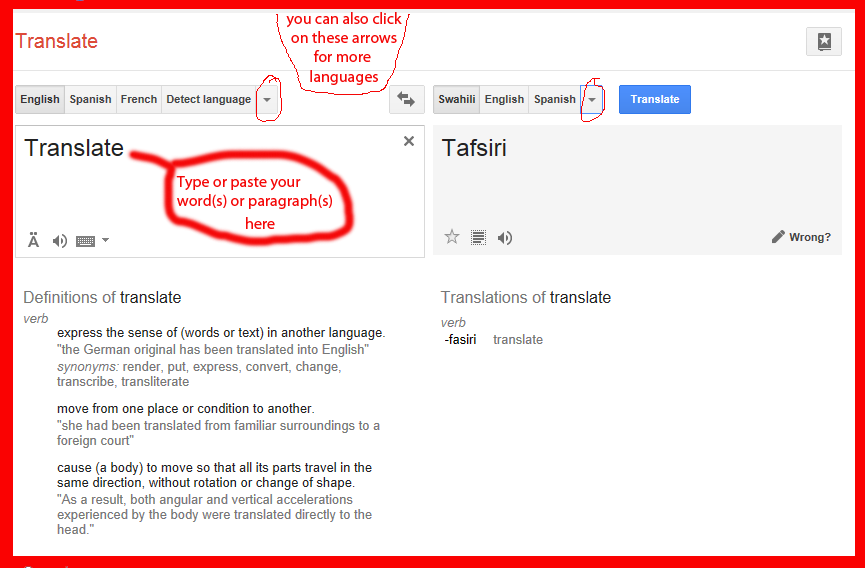
and you can also click one of the arrow to choose for more
How to download video from youtube, vimeo etc. the easy way
How to download video from youtube, vimeo or other sites the easy way, without even using any download manager software/app, to your computer or smartphones... |
|---|
The best way to download video from youtube is by using Internet Download Manager(IDM) or other download manager software, but not all the times IDM or these download managers works perfect.
Sometimes you may want to download video(s) and to your surprises all downloads manager fail to fetch/catch your video. and it happens that you tried to uninstall and install again, update and use other different download manager but still fail to fetch/catch it.
In this situation you can try "Online video downloaders", You can download video from youtube vimeo and other websites. Also this is the easiest way to download video from smartphones since you don't need to download any app.
What you need to do is just use one of these sites
OR Just type "Online video downloader" on search engines and you will see other sites if one link doesn't satisfy you just move to another link.

and copy the video link from your website, here I am going to use this one from youtube,
|
Did you know that you can use WINRAR to protect your files with password (a mean to protect your files with password)
WinRAR is a helpful tool allows you to create and handle archive files. It completely supports rar and zip. What's more, it is also able to unpack CAB, ARJ, LZH, TAR, GZ, ACE, UUE, BZ2, JAR, ISO, 7Z, Z archives. It consistently makes smaller archives than the competition, saving disk space and transmission costs.
In our daily work, create password protected RAR archives to against WinRAR files from others viewing is in great request. Usually, there are two proven techniques to create password protected RAR archives.
Option one: You can open the password-protected RAR archive and view the individual files name, but you need knowing the password to extract the all files.
Option two: You can't open the password-protected RAR archive and can’t even view the individual files name without the password.
Below we will show you how to create these two types of password-protected rar archives.
If you haven't installed it yet download it from http://www.rarlab.com/download.htm
(choose the right version for your device)
If you haven't installed it yet download it from http://www.rarlab.com/download.htm
(choose the right version for your device)
Step 1: Open Winrar and click on Wizard.

Step 2: On the Wizard Choose the operation window, select Create a new archive and then click Next.
How to recover your important files/folders from usb/disk infected by shortcut virus using WinRAR (WinRAR trick)
Most people used to recover their files/folders by using command prompt (CMD) code
ATTRIB -H -R -S /S /D G:/
while G:/ is the drive letter of your Pen drive. If you USB has another drive letter then replace G:/ with that drive letter.
But also you can try recover your important files/folders the easiest way by using WinRAR
If you don't have WinRAR installed on your PC you can download it from http://www.rarlab.com/ choose the right version and download it, install it then follow the steps below.
First you files from usb/disk will look like this like this

On that folder/drive create WinRAR file by right click - new - WinRAR archive

Double click the WinRAR archive icon

Click on  OR double click on
OR double click on 
Then all your files/folders will appear as below, you can open them or drag and drop them to new location/folder

Using Aero Flip 3D (Ctrl+Windows logo key+Tab)
With Aero Flip 3D, you can quickly preview all of your open windows (for example, open files, folders, and documents) without clicking the taskbar. Flip 3D displays your open windows in a stack. At the top of the stack, you'll see one open window. To see other windows, you can flip through the stack.

- Press Ctrl+Windows logo key
+Tab.
- Press Tab to move through the windows. (You can also press Right Arrow or Down Arrow to move forward one window, or press Left Arrow or Up Arrow to move backward one window.)
- Click a window in the stack to display that window, or click outside the stack to close Flip 3D without switching windows. You can also rotate the wheel on your mouse to quickly move through the open windows.
You can also use

and holding down the Windows logo key. Press Tab until the window you want is at the front of the stack, and then release the Windows logo key.
How to View Stored Passwords in Firefox (Viewing someone account password on Firefox)
In Firefox you can view someone/friend/own Facebook, Twitter, Yahoo, Gmail Account or any website password, you can view it or delete it.
Firefox allows you to securely store usernames and passwords for websites in its Password Manager. When you visit one of the websites again, Firefox automatically fills in the username and password to log you in.
If you need to find out what your password is for a specific website such as Facebook, Yahoo, Twitter, Gmail etc. for which you saved your logon information, you can easily do so. To view your saved passwords in Firefox, select Options from the Firefox menu.
NOTE: You can open the Options dialog box by selecting Options on the main Firefox menu or on the submenu.

OR You can press alt key then on the tools menu click option

On the Options dialog box, click the Security button at the top. In the Passwords box, cl
Keyboard key to minimize all open windows and/or programs
Did you know that if you press
 |
| Windows_key + D |
you will minimize all open windows or/and program???
Incase you are situation that you need to minimize everything in your computer you can use the combination of those key...
How to Update windows xp sp2 to sp3 (from service pack 2 to Service pack 3)
Updating Windows XP Home Edition , Windows XP Professional Edition, Windows XP Service Pack 1 or Windows XP Service Pack 2 is easy just use automatic updates or you can visit Windows Update at http://update.microsoft.com.
But the best way is to download the installation package from http://www.microsoft.com/en-us/download/details.aspx?id=24
This installation package is intended for IT professionals and developers downloading and installing on multiple computers on a network but it doesn't matter if you install on single pc or more..
How to Reset Your Forgotten Windows Password
Forgetting your password is never any fun, but luckily there’s a really easy way to reset the password. All you need is a copy of the Windows installation disk and one simple command line trick.
Use this at your own risk:

Follow the link below to reset Your Forgotten Windows Password the Easy Way
http://www.howtogeek.com/96630/how-to-reset-your-forgotten-windows-password-the-easy-way/
Subscribe to:
Posts
(
Atom
)


